To-Do App With Flutter: Step By Step Guide
10 min read
10 min read
When it comes to mobile app development there are plenty of frameworks and programming languages to choose from. But, in recent years Flutter is gaining popularity because of its numerous benefits. Developers are enjoying working on this platform and the subsequent updates provide them with the flexibility and innovation they crave.
In fact, there has been a gradual growth in the popularity of Flutter SDK (software development kit) as about 42% of Statista survey respondents chose it as their preferred platform in 2021. While it has surely become the most used programming language for mobile app development, the release of Flutter 3 on May 11, 2022, is expected to further solidify this effect.
Flutter is easy to learn and implement as it is dependent on Dart programming language. Dart is simple and easy to learn by all programmers compared to other programming languages. Due to various Flutter 3 features like a single code base, support for multiple platforms, etc., Flutter stands out. Going further, let’s see how to build a step-by-step guide to develop a ToDo App using Flutter and why you should hire Flutter app developer.
Let’s get started:
Read Also: How to Handle Offline Data Storage with Flutter Hive
Step 2: Select Flutter in the menu, and click Next.
Step 3: Enter your Project name and Project location.
Step 4: If you are going to publish this app, set the company domain.
Step 5: Click Finish.
Your newly created project will be the flutter default app.
Read also: Flutter App Development Future Trends
Here, we will develop a class to hold the information about the task to do so, create a file named task.dart in /lib and write the following code:
class Task {
// Class properties
Int _id;
String _name;
bool _completed;
// Default constructor
Task(this._name);
// Getter and setter for id  getId() => this._id;
setId(id) => this._id = id;
// Getter and setter for name
getName() => this._name;
setName(name) => this._name = name;
// Getter and setter for completed
isCompleted() => this._completed;
setCompleted(completed) => this._completed = completed;
}
The first step is to create a list of tasks. To do so write the following code:
class TODOApp extends StatelessWidget {
// Creating a list of tasks with some dummy values
final List< Task > tasks = [
Task(‘Do homework’),
Task(‘Laundry’),
Task(‘Finish this draft document’)
];
@override
Widget build(BuildContext context) {
return MaterialApp(
title: ‘TODO app’,
home: Scaffold(
appBar: AppBar(
title: Text(‘TODO app’),
),
// Using ListView.builder to render a list of tasks
body: ListView.builder(
// How many items to render
itemCount: tasks.length,
// Functions that accepts an index and renders a task
itemBuilder: (context, index) {
return ListTile(
title: Text(tasks[index].getName()), );})));}}
With the above code we have one screen which will help you to display tasks. Our next step is to develop a screen which allows users to create tasks. Write the following code in main.dart file:
void main() => runApp(TODOApp());
class TODOApp extends StatelessWidget {
final List< Task > tasks = [ Task(‘Do homework’), Task(‘Laundry’), Task(‘Finish this tutorial’) ];
@override Widget build(BuildContext context) { // Instead of rendering content, we define routes for different screens // in our app return MaterialApp( title: ‘TODO app’, initialRoute: ’/’, routes: { // Screen to view tasks ’/’: (context) => TODOList(tasks: tasks), // Screen to create tasks ‘/create’: (context) => TODOCreate(), }, ); } }
// A new widget that will render the screen to view tasks class TODOList extends StatelessWidget {
final List< Task > tasks;
// Receiving tasks from parent widget TODOList({@required this.tasks});
@override Widget build(BuildContext context) { return Scaffold( appBar: AppBar( title: Text(‘TODO app’), ), body: ListView.builder( itemCount: tasks.length, itemBuilder: (context, index) { return ListTile( title: Text(tasks[index].getName()), ); }), // Add a button to open the screen to create a new task floatingActionButton: FloatingActionButton( onPressed: () => Navigator.pushNamed(context, ‘/create’), child: Icon(Icons.add) ), ); } }
// A new widget to render new task creation screen class TODOCreate extends StatelessWidget { @override Widget build(BuildContext context) { return Scaffold( appBar: AppBar(title: Text(‘Create a task’)), // We will finish it later body: Center(child: Text(‘Not yet’))); } }
The TODOCreate class will hold the form to create tasks. Whereas, in TODOApp class we defined routes and initialRoute which will handle navigation logic.
Protip: Use Navigator class to navigate between routes.
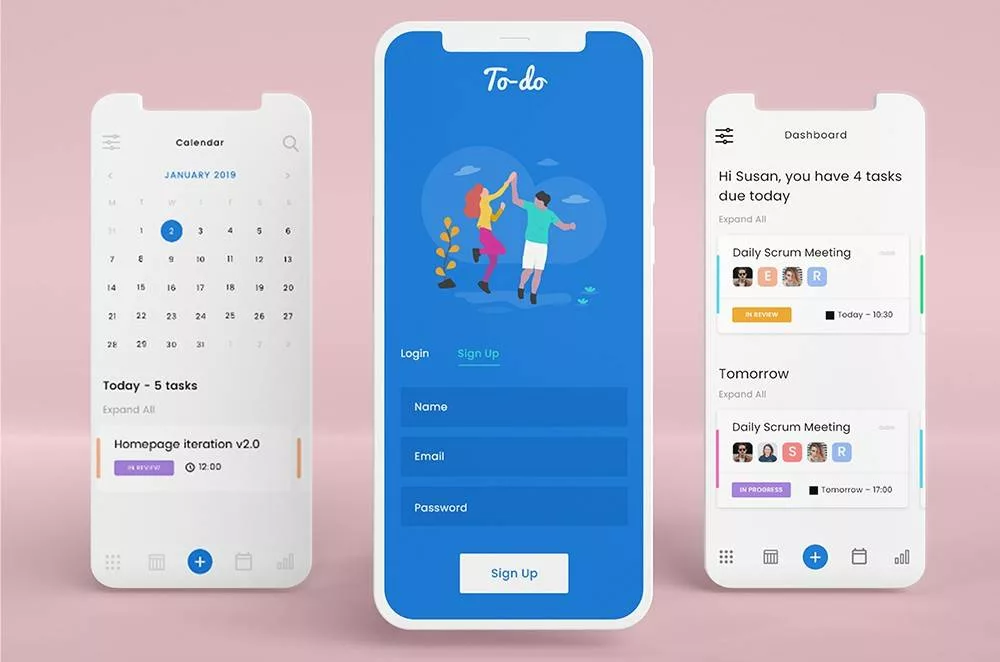
To create new tasks we will create a button in the TODOList class. Next up, on its onPressed event we will call Navigator.pushNamed to navigate via TODOCreate. Now your application will look like this:
class TODOApp extends StatelessWidget {
@override
Widget build(BuildContext context) {
return TODO();
}}
// Here we are defining a StatefulWidget class TODO extends StatefulWidget { // Every stateful widget must override createState @override State< StatefulWidget > createState() { return TODOState(); }}
// This is the state for then TODO widget class TODOState extends State< TODO > { // We define the properties for the widget in its state final List< Task > tasks = [ Task(‘Do homework’), Task(‘Laundry’), Task(‘Finish this tutorial’) ]; // Now state is responsible for building the widget
@override Widget build(BuildContext context) { return MaterialApp( title: ‘TODO app’, initialRoute: ’/’, routes: { ’/’: (context) => TODOList(tasks: tasks), ‘/create’: (context) => TODOCreate(), }, );}}
Next step is to create a tasks:
class TODO extends StatefulWidget {
@override
State< StatefulWidget > createState() {
return TODOState();
}}
class TODOState extends State< TODO > { // At this point we can remove the dummy data final List< Task > tasks = []; // Function that modifies the state when a new task is created void onTaskCreated(String name) { // All state modifications have to be wrapped in setState // This way Flutter knows that something has changed setState(() { tasks.add(Task(name)); }); }
@override Widget build(BuildContext context) { return MaterialApp( title: ‘TODO app’, initialRoute: ’/’, routes: { ’/’: (context) => TODOList(tasks: tasks), // Passing our function as a callback ‘/create’: (context) => TODOCreate(onCreate: onTaskCreated,), },);}} class TODOList extends StatelessWidget { final List< Task > tasks; TODOList({@required this.tasks}); @override Widget build(BuildContext context) { return Scaffold( appBar: AppBar( title: Text(‘TODO app’), ), body: ListView.builder( itemCount: tasks.length, itemBuilder: (context, index) { return ListTile( title: Text(tasks[index].getName()), ); }), floatingActionButton: FloatingActionButton( onPressed: () => Navigator.pushNamed(context, ‘/create’), child: Icon(Icons.add)),);}}
class TODOCreate extends StatefulWidget {
TODOCreate({@required this.onCreate}); @override State< StatefulWidget > createState() { return TODOCreateState(); }}
class TODOCreateState extends State< TODOCreate > { final TextEditingController controller = TextEditingController(); @override Widget build(BuildContext context) { return Scaffold( appBar: AppBar(title: Text(‘Create a task’)), body: Center( child: Padding( padding: EdgeInsets.all(16), child: TextField( autofocus: true, controller: controller, decoration: InputDecoration( labelText: ‘Enter name for your task’ ) ))), floatingActionButton: FloatingActionButton( child: Icon(Icons.done), onPressed: () { widget.onCreate(controller.text); Navigator.pop(context); },), );}}
class TODOState extends State< TODO > {
final List< Task > tasks = [];
void onTaskCreated(String name) { setState(() { tasks.add(Task(name)); }); } void onTaskToggled(Task task) { setState(() { task.setCompleted(!task.isCompleted()); }); }
@override Widget build(BuildContext context) { return MaterialApp( title: ‘TODO app’, initialRoute: ’/’, routes: { // Passing the function as a callback ’/’: (context) => TODOList(tasks: tasks, onToggle: onTaskToggled), ‘/create’: (context) => TODOCreate(onCreate: onTaskCreated,), }, ); } }
class TODOList extends StatelessWidget {
final List< Task > tasks; final onToggle;
TODOList({@required this.tasks, @required this.onToggle});
@override Widget build(BuildContext context) { return Scaffold( appBar: AppBar( title: Text(‘TODO app’), ), body: ListView.builder( itemCount: tasks.length, itemBuilder: (context, index) { return CheckboxListTile( title: Text(tasks[index].getName()), value: tasks[index].isCompleted(), onChanged: (_) => onToggle(tasks[index]), ); }), floatingActionButton: FloatingActionButton( onPressed: () => Navigator.pushNamed(context, ‘/create’), child: Icon(Icons.add) ), ); } }
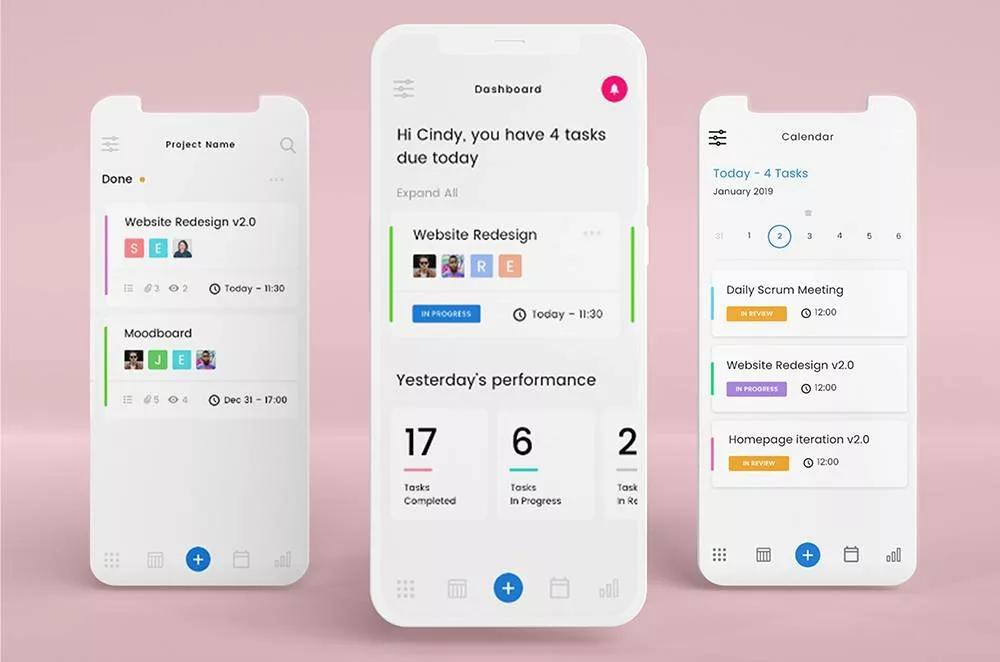
Now your app should look like this:
Add the following line in dependencies:
classpath ‘com.google.gms:google-services:4.3.3’
Make sure that you have google() in all the projects like allprojects → repositories. Next step is open the file < project folder >/android/app/build.gradle and add this line to the bottom of the file:
apply plugin: ‘com.google.gms.google-services’
Next up you need to add Firebase plugins in the Flutter, to do so, < project folder >/pubspec.yaml and edit the folder in the following way:
Dependencies:
Flutter:
sdk: flutter
Add these lines:
firebase_core: ^1.4.0
firebase_auth: ^3.0.1
cloud_firestore: ^2.4.0
Install Flutter packages using command line or press Packages in the Android Studio:
class TODOList extends StatelessWidget {
final List< Task > tasks; final onToggle;
TODOList({@required this.tasks, @required this.onToggle});
@override Widget build(BuildContext context) { return Scaffold( appBar: AppBar( title: Text(‘TODO app’), ), body: ListView.builder( itemCount: tasks.length, itemBuilder: (context, index) { return CheckboxListTile( title: Text(tasks[index].getName()), value: tasks[index].isCompleted(), onChanged: (_) => onToggle(tasks[index]), ); }), floatingActionButton: FloatingActionButton( onPressed: () => Navigator.pushNamed(context, ‘/create’), child: Icon(Icons.add) ), ); } }
class TODOList extends StatelessWidget {
final List< Task> tasks; final onToggle;
TODOList({@required this.tasks, @required this.onToggle});
@override Widget build(BuildContext context) { return Scaffold( appBar: AppBar( title: Text(‘TODO app’), ), body: ListView.builder( itemCount: tasks.length, itemBuilder: (context, index) { return CheckboxListTile( title: Text(tasks[index].getName()), value: tasks[index].isCompleted(), onChanged: (_) => onToggle(tasks[index]), ); }), floatingActionButton: FloatingActionButton( onPressed: () => Navigator.pushNamed(context, ‘/create’), child: Icon(Icons.add) ), ); } }
Now, the main.dart file will look like this:
void main() => runApp(TODOApp());
class TODOApp extends StatelessWidget { @override Widget build(BuildContext context) { return TODO(); } }
class TODO extends StatefulWidget {
@override State< StatefulWidget > createState() { return TODOState(); } }
class TODOState extends State< TODO > {
final List< Task > tasks = [];
void onTaskCreated(String name) { setState(() { tasks.add(Task(name)); }); }
void onTaskToggled(Task task) { setState(() { task.setCompleted(!task.isCompleted()); }); }
@override Widget build(BuildContext context) { return MaterialApp( title: ‘TODO app’, initialRoute: ’/’, routes: { ’/’: (context) => TODOList(tasks: tasks, onToggle: onTaskToggled), ‘/create’: (context) => TODOCreate(onCreate: onTaskCreated,), }, ); } }
Now, add the following code in login.dart file:
class TODOLogin extends StatefulWidget {
// Callback function that will be called on pressing the login button final onLogin;
TODOLogin({@required this.onLogin});
@override State< StatefulWidget > createState() { return LoginState(); } }
class LoginState extends State< TODOLogin > {
final TextEditingController emailController = TextEditingController(); final TextEditingController passwordController = TextEditingController();
@override Widget build(BuildContext context) { return Scaffold( appBar: AppBar( title: Text(‘Please log in’) ), body: Padding( padding: EdgeInsets.all(16), child: Column( children: < Widget >[ Padding( padding: EdgeInsets.only(bottom: 16), child: TextField( decoration: InputDecoration( border: OutlineInputBorder(), labelText: ‘Email’ ), ) ), Padding( padding: EdgeInsets.only(bottom: 16), child: TextField( obscureText: true, decoration: InputDecoration( border: OutlineInputBorder(), labelText: ‘Password’ ), ) ), RaisedButton( onPressed: () => widget.onLogin(emailController.text, passwordController.text), child: Text(‘LOGIN’), color: ThemeData().primaryColor, ) ], mainAxisAlignment: MainAxisAlignment.center, crossAxisAlignment: CrossAxisAlignment.end, ) ));}}
Main.dart file
void main() => runApp(TODOApp());
class TODOApp extends StatelessWidget { @override Widget build(BuildContext context) { return TODO(); }}
class TODO extends StatefulWidget { @override State< StatefulWidget > createState() { return TODOState(); }}
class TODOState extends State< TODO > {
final List< Task > tasks = [];
void onTaskCreated(String name) { setState(() { tasks.add(Task(name)); });} void onTaskToggled(Task task) { setState(() { task.setCompleted(!task.isCompleted()); }); }
void onLogin(String email, String password) { // We will finish it later }
@override Widget build(BuildContext context) { return MaterialApp( title: ‘TODO app’, initialRoute: ’/’, routes: { ’/’: (context) => TODOLogin(onLogin: onLogin), ‘/list’: (context) => TODOList(tasks: tasks, onToggle: onTaskToggled), ‘/create’: (context) => TODOCreate(onCreate: onTaskCreated,), }, ); }}
Read Also: Cross-platform App Development: Should Startups Invest in it or Not?
Now when a user logins it will send email and password to root widget via callback. Your login screen will look something like this:
Write the following code in auth.dart file:
class Authentication {
final _firebaseAuth = FirebaseAuth.instance;
Future< FirebaseUser > login(String email, String password) async { try { AuthResult result = await _firebaseAuth.signInWithEmailAndPassword( email: email, password: password );
return result.user; } catch (e) { return null; } }}
void main() => runApp(TODOApp());
class TODOApp extends StatelessWidget { @override Widget build(BuildContext context) { return TODO(); }}
class TODO extends StatefulWidget {
@override State< StatefulWidget > createState() { return TODOState(); }}
class TODOState extends State< TODO > {
final List< Task > tasks = []; final Authentication auth = new Authentication(); FirebaseUser user;
void onTaskCreated(String name) { setState(() { tasks.add(Task(name)); }); }
void onTaskToggled(Task task) { setState(() { task.setCompleted(!task.isCompleted()); }); }
void onLogin(FirebaseUser user) { setState(() { this.user = user; }); }
@override Widget build(BuildContext context) { return MaterialApp( title: ‘TODO app’, initialRoute: ’/’, routes: { ’/’: (context) => TODOLogin(onLogin: onLogin), ‘/list’: (context) => TODOList(tasks: tasks, onToggle: onTaskToggled), ‘/create’: (context) => TODOCreate(onCreate: onTaskCreated,), },); }}
class TODOLogin extends StatefulWidget {
final onLogin;
TODOLogin({@required this.onLogin});
@override State< StatefulWidget > createState() { return LoginState(); }}
class LoginState extends State< TODOLogin > {
final TextEditingController emailController = TextEditingController(); final TextEditingController passwordController = TextEditingController();
final auth = Authentication();
void doLogin() async { final user = await auth.login(emailController.text, passwordController.text); if (user != null) { widget.onLogin(user); Navigator.pushReplacementNamed(context, ‘/list’); } else { _showAuthFailedDialog(); } }
void _showAuthFailedDialog() { showDialog( context: context, builder: (BuildContext context) { return AlertDialog( title: new Text(‘Could not log in’), content: new Text(‘Double check your credentials and try again’), actions: < Widget >[ new FlatButton( child: new Text(‘Close’), onPressed: () { Navigator.of(context).pop(); }, ), ], ); }, );}
@override Widget build(BuildContext context) { return Scaffold( appBar: AppBar( title: Text(‘Please log in’) ), body: Padding( padding: EdgeInsets.all(16), child: Column( children: < Widget >[ Padding( padding: EdgeInsets.only(bottom: 16), child: TextField( controller: emailController, decoration: InputDecoration( border: OutlineInputBorder(), labelText: ‘Email’ ), ) ), Padding( padding: EdgeInsets.only(bottom: 16), child: TextField( controller: passwordController, obscureText: true, decoration: InputDecoration( border: OutlineInputBorder(), labelText: ‘Password’ ), ) ), RaisedButton( // Calling the doLogin function on press onPressed: doLogin, child: Text(‘LOGIN’), color: ThemeData().primaryColor, ) ], mainAxisAlignment: MainAxisAlignment.center, crossAxisAlignment: CrossAxisAlignment.end, ) ) ); }}
void main() => runApp(TODOApp());
class TODOApp extends StatelessWidget { @override Widget build(BuildContext context) { return TODO(); }}
class TODO extends StatefulWidget {
@override State< StatefulWidget > createState() { return TODOState(); }}
class TODOState extends State< TODO > {
final List< Task > tasks = []; final Authentication auth = new Authentication(); FirebaseUser user;
void onTaskCreated(String name) { setState(() { tasks.add(Task(name)); }); }
void onTaskToggled(Task task) { setState(() { task.setCompleted(!task.isCompleted()); }); }
void onLogin(FirebaseUser user) { setState(() { this.user = user; }); }
@override Widget build(BuildContext context) { return MaterialApp( title: ‘TODO app’, initialRoute: ’/’, routes: { ’/’: (context) => TODOLogin(onLogin: onLogin), ‘/list’: (context) => TODOList(tasks: tasks, onToggle: onTaskToggled), ‘/create’: (context) => TODOCreate(onCreate: onTaskCreated,), }, ); }}
void main() => runApp(TODOApp());
class TODOApp extends StatelessWidget { @override Widget build(BuildContext context) { return TODO(); }}
class TODO extends StatefulWidget {
@override State< StatefulWidget > createState() { return TODOState(); }}
class TODOState extends State< TODO > {
final List< Task > tasks = []; final Authentication auth = new Authentication(); FirebaseUser user;
void onTaskCreated(String name) { setState(() { tasks.add(Task(name)); }); }
void onTaskToggled(Task task) { setState(() { task.setCompleted(!task.isCompleted()); }); }
void onLogin(FirebaseUser user) { setState(() { this.user = user; });}
@override Widget build(BuildContext context) { return MaterialApp( title: ‘TODO app’, initialRoute: ’/’, routes: { ’/’: (context) => TODOLogin(onLogin: onLogin), ‘/list’: (context) => TODOList(tasks: tasks, onToggle: onTaskToggled), ‘/create’: (context) => TODOCreate(onCreate: onTaskCreated,), }, ); }}
We need to change TODOList to fetch data from Firestore and update it if user completes the task:
class TODOList extends StatelessWidget {
final collection = Firestore.instance.collection(‘tasks’);
@override Widget build(BuildContext context) { return Scaffold( appBar: AppBar( title: Text(‘TODO app’), ), body: StreamBuilder< QuerySnapshot >( stream: collection.snapshots(), builder: (BuildContext context, AsyncSnapshot< QuerySnapshot > snapshot) { if (snapshot.hasError) return Text(‘Error: ${snapshot.error}’); switch (snapshot.connectionState) { case ConnectionState.waiting: return Text(‘Loading…’); default: return ListView( children: snapshot.data.documents.map((DocumentSnapshot document) { return CheckboxListTile( title: Text(document[‘name’]), value: document[‘completed’], onChanged: (newValue) => collection.document(document.documentID).updateData({‘completed’: newValue}) ); }).toList(), ); } }, ), floatingActionButton: FloatingActionButton( onPressed: () => Navigator.pushNamed(context, ‘/create’), child: Icon(Icons.add) ), ); }}
Next up, we will integrate TODOCreate to the Firestore:
class TODOCreate extends StatefulWidget {
@override State< StatefulWidget > createState() { return TODOCreateState(); }}
class TODOCreateState extends State< TODOCreate > {
final collection = Firestore.instance.collection(‘tasks’); final TextEditingController controller = TextEditingController();
@override Widget build(BuildContext context) { return Scaffold( appBar: AppBar(title: Text(‘Create a task’)), body: Center( child: Padding( padding: EdgeInsets.all(16), child: TextField( autofocus: true, controller: controller, decoration: InputDecoration( labelText: ‘Enter name for your task’ ) ) ) ), floatingActionButton: FloatingActionButton( child: Icon(Icons.done), onPressed: () async { await collection.add({‘name’: controller.text, ‘completed’: false}); Navigator.pop(context); }, ), ); }}
void main() => runApp(TODOApp());
class TODOApp extends StatelessWidget { @override Widget build(BuildContext context) { return TODO(); }}
class TODO extends StatefulWidget {
@override State< StatefulWidget > createState() { return TODOState(); }}
class TODOState extends State< TODO > {
final Authentication auth = new Authentication(); FirebaseUser user;
void onLogin(FirebaseUser user) { setState(() { this.user = user; }); }
@override Widget build(BuildContext context) { return MaterialApp( title: ‘TODO app’, initialRoute: ’/’, routes: { ’/’: (context) => TODOLogin(onLogin: onLogin), ‘/list’: (context) => TODOList(), ‘/create’: (context) => TODOCreate(), }, ); }}
Voila! Our TODO app is ready. Follow these steps to build your first TODO app using Flutter. Apart from this, if you have an application idea using Flutter, reach out to us. Hire flutter app developers from us and our team will help you with turning your ideas into a reality.
All product and company names are trademarks™, registered® or copyright© trademarks of their respective holders. Use of them does not imply any affiliation with or endorsement by them.You are at the right place.
Projects Completed
Technical Experts
Happy Clients
Years of Experience
Book a free consultation call with us





By submitting this form, you agree to our Terms of Use and Privacy Policy. All information provided will be kept strictly confidential.